
 Ishtiga
Guide 5 of 15
Put the chat on your website
Goal: prove you own the website, set how the chat looks, and install the one-line script. Who: Owners and Admins. Anyone can use the preview. You will need: access to your website's HTML, its hosting, or its DNS records, for one of the three verification methods.
Step 1: Open the Publish page
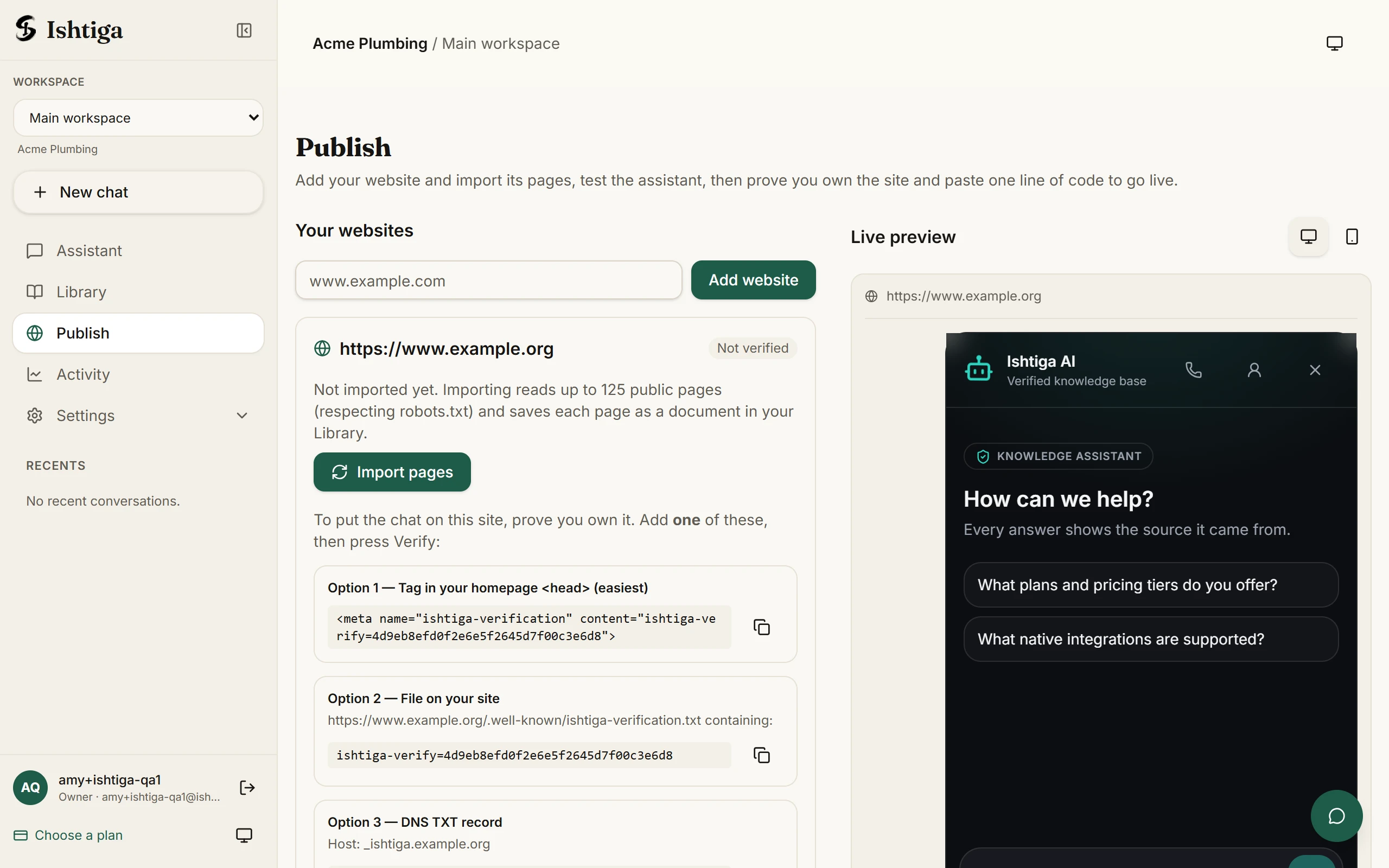
Choose Publish. Once a website has been added, the page shows the site card, the Embed & share section, Assistant appearance and Conversion AI, with a Live preview on the right.
Step 2: Prove you own the site
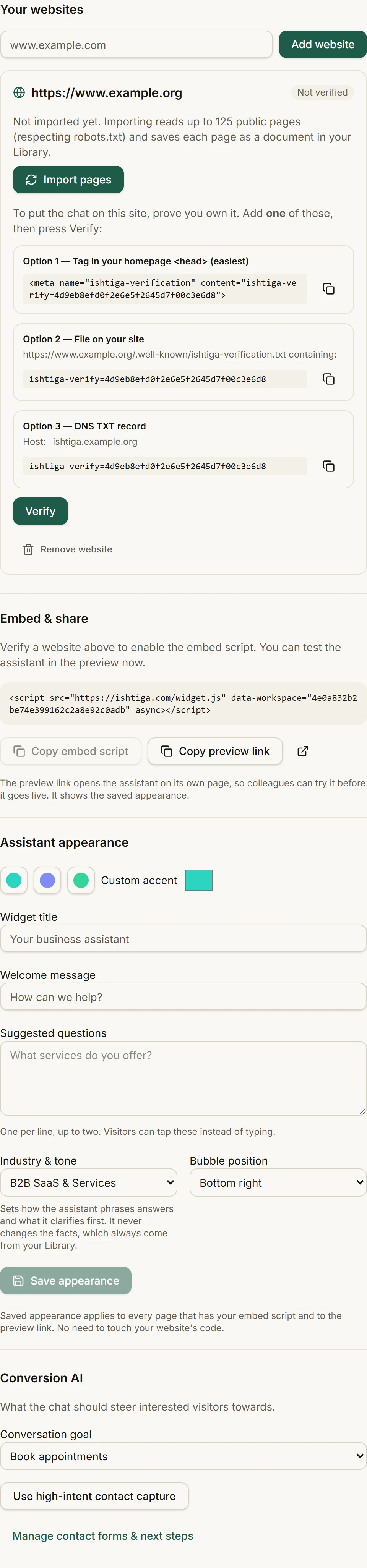
The site card shows Not verified until you complete one of three options. You only need one.
| Option | What to do | Best for |
|---|---|---|
| 1. Tag in your homepage head | Copy the <meta name="ishtiga-verification" …> tag and add it inside <head> on your homepage | Anyone who can edit the site's template |
| 2. File on your site | Create /.well-known/ishtiga-verification.txt containing the token shown | Static sites and most hosting panels |
| 3. DNS TXT record | Add a TXT record at the host shown (for example _ishtiga.example.com) with the token as its value | When you cannot change the site itself |
Each option has a copy button beside its token. After publishing the proof, return to Ishtiga and choose Verify. DNS changes can take time to propagate; if verification fails, wait and try again. When it succeeds the card shows Verified, and the embed script becomes available.
Step 3: Try the preview
The Live preview on the right behaves exactly like the installed widget and answers from this workspace's public items. Switch between the desktop and phone icons to see both layouts.

Test answers here use AI answer credits in the same way as real visitor questions.
Step 4: Set the appearance
Under Assistant appearance:
- Choose Upload logo to add your own assistant logo or avatar (PNG, JPEG, WebP or SVG, under 2 MB). Remove restores the default icon. The logo lives here, not in workspace settings.
- Choose an accent colour, or set a Custom accent.
- Enter a Widget title (for example "Acme assistant") and a Welcome message.
- Add up to two Suggested questions, one per line. Visitors can tap these instead of typing.
- Pick an Industry & tone preset. It changes how the assistant phrases answers and what it clarifies first; facts always come from your Library.
- Pick the Bubble position.
- Choose Save appearance.
Saved appearance applies to every page that has your script and to the preview link within a few minutes. You never need to touch the script on your site again.
On every plan the chat header also has a Talk to a person button, so visitors can leave their details for your team at any time (see guide 7).
Step 5: Install the script
In Embed & share:
- Choose Copy embed script. It looks like
<script src="https://ishtiga.com/widget.js" data-workspace="…" async></script>and is tied to this workspace. - Paste it into your website's HTML just before the closing
</body>tag, or into the "custom scripts" area of your site builder. - Publish the website change.
- Back in Ishtiga, choose Test live installation on the verified site card. It reports Widget active when it finds the script.
- Open your site. The chat bubble appears in the corner you chose.
The widget only loads on a verified origin. If you install it on another domain, or on a staging site, verify that site too.
Step 6: Share it before going live (optional)
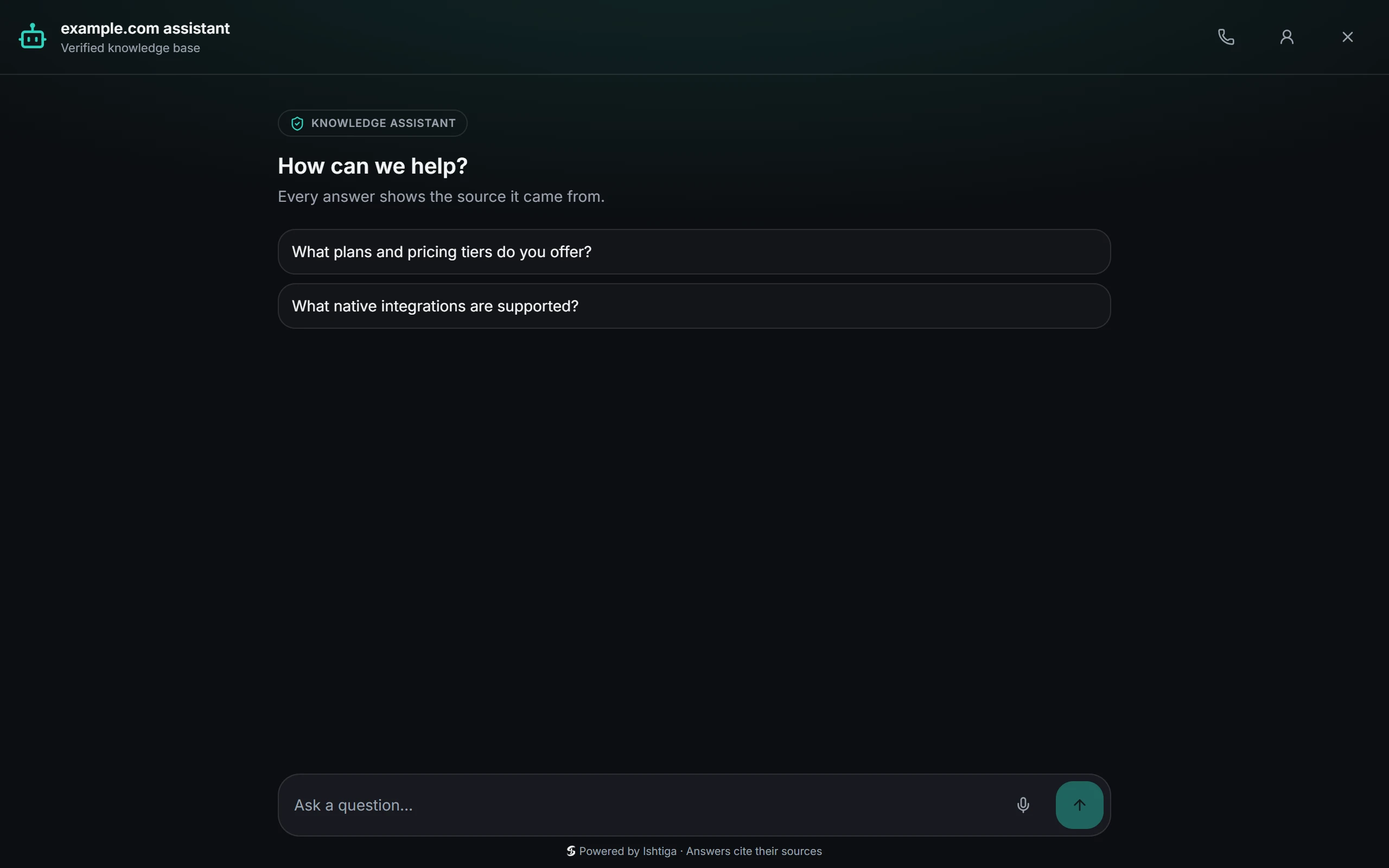
Copy preview link opens the assistant on its own page with the saved appearance. Send it to colleagues to try questions before the script goes live.
Next
Decide what the chat should steer interested visitors towards in guide 6, and watch the first conversations arrive in guide 7.
If something goes wrong
- Verify keeps failing: the token must match exactly. For the meta tag, view the page source of your homepage and search for
ishtiga-verification. For DNS, query the record withnslookup -type=TXT _ishtiga.yourdomain.com. - No bubble on the site: confirm the site is marked Verified, the script is on the published page, and you copied the script for the right workspace.
- Bubble appears but answers say the service is paused: the trial has ended or the allowance is used up. See guide 10.