
 Ishtiga
Guide 4 of 15
Import your website pages
Goal: turn the public pages of your website into Library documents the assistant can answer from. Who: Owners and Admins. Limits: up to 40 pages per import on Toki, 125 on Saku. Private pages, pages behind a login and paths blocked by robots.txt are skipped.
You do not need to prove you own the site to import its public pages. Verification is only needed later, to put the chat on the site (guide 5).
Step 1: Open Publish
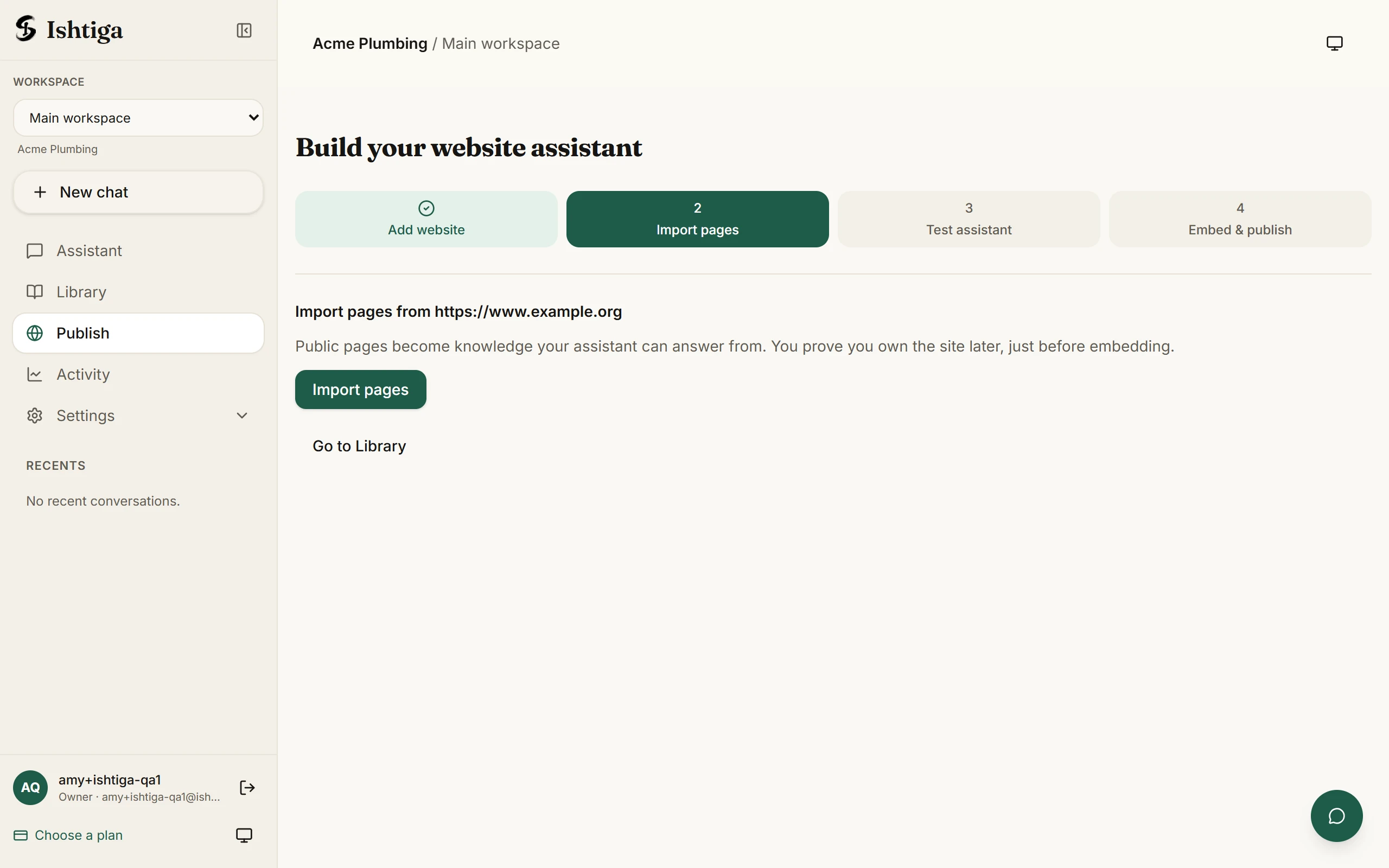
Choose Publish in the sidebar. Straight after you create your organisation, Ishtiga opens a four-step wizard instead: Add website, Import pages, Test assistant, Embed & publish. In the wizard, Add website & import pages does steps 2 and 3 below in one go.
Step 2: Add the website
- Enter the address, for example
www.example.com. Ishtiga normalises it tohttps://www.example.com. - Choose Add website.
- Read the reachability and robots.txt result shown under the field. If the site blocks crawlers, the import will find nothing.
Step 3: Import the pages
Choose Import pages on the site card. The import reads public pages, including content rendered by JavaScript, and stores each page as its own document in a folder named Website — your-site in the Library. A small site takes well under a minute; a site that reaches the page limit takes longer.
When it finishes, a message such as "Imported 12 pages, every page found" appears. If it reports a page limit, the most important pages are usually near the top of your navigation, which is crawled first. If it says the import timed out, the pages read so far are kept; run it again to add more.
Checking that every page came in
Every import is checked against your site's sitemap (/sitemap.xml) and homepage. Any listed page the crawler missed, or returned with no readable text, is fetched again automatically. If the crawling service has an outage, the import retries it once and then imports the pages with Ishtiga's built-in crawler instead.
Under the site card, and on the wizard's Test assistant step, the result says one of two things:
- Every page found was imported, with the page count.
- 20 of 22 pages found were imported, followed by each missing page and the reason: the page didn't load, it has no readable text (it may be built with JavaScript only), it's over your plan's page limit, or the import ran out of time.
It also says which pages had to be fetched a second time, and it names any crawling-service problem the import worked around. Pages your site asks crawlers to skip (robots.txt or a noindex tag) are listed separately under Left out by your site's own settings. Those aren't errors. To try missing pages again, choose Re-import pages. A page with no readable text can be uploaded as a document instead.
If an import fails, the site card says "The last import failed. Try again." and the button becomes Retry import in the wizard. Your previous pages are left untouched.
Keeping the pages up to date
After the first import, a verified website is checked once a week. Only pages that changed, or are new in your sitemap, are imported again, and pages that are gone are removed. Turn this off with Keep in sync weekly on the site card.
Step 4: Check the imported pages
Open Library. The website folder lists every imported page with its passage count. Imported pages are public by default, because they were already public on your site.
- Remove individual pages you do not want the assistant to use, such as a careers page, with the trash icon.
- Use Make private on the folder if you want to review pages before visitors can get answers from them.
Step 5: Test with a real question
Use the Live preview on the right of the Publish page, or the Assistant on Saku, and ask something the pages answer. Open the citation to confirm it points at the right page. See guide 3.
Importing again
Content changes on your site are not picked up automatically. On the Publish page, choose Re-import pages on the site card. A new import replaces the previous import of that site in the Library, so you never end up with two copies of the same page.
Next
Prove you own the site and install the chat in guide 5.
If something goes wrong
- "No readable pages were found": the site blocks crawlers, needs sign-in, or builds every page in the browser without server-rendered text. Upload the key pages as documents instead.
- "An import for this website is already running": wait for the current import to finish. If it appears stuck, wait five minutes and try again.
- Pages missing: the list under the site card names each missing page and why. Pages that aren't in your sitemap or linked from your site can't be found; add them to
sitemap.xml. Check robots.txt, and check whether the page limit was reached. Delete low-value pages from the folder and re-import, or upload the missing pages directly.