
 Ishtiga
Guide 7 of 15
Review activity, leads and knowledge gaps
Goal: a weekly routine: read what visitors asked, follow up leads, fill the gaps, and keep an eye on usage. Who: everyone with access to the workspace. Changing lead status and adding answers need Member or above. Plan: conversations, handoffs, gaps and usage are on every plan. Lead management, conflict checks and AI drafting are part of Ishtiga Saku.
Step 1: Open Activity
Choose Activity. At the top, the Morning summary covers the last 24 hours: website chats and voice calls, new leads (Saku) and how many Need you. Each chat or call is marked Answered, Lead captured or Needs you. Switch on Email me this every day on the card to get it by email.
Below it, the tiles summarise the last 30 days for the selected workspace: conversations and knowledge gaps to review, plus leads captured and conversion rate on Saku.
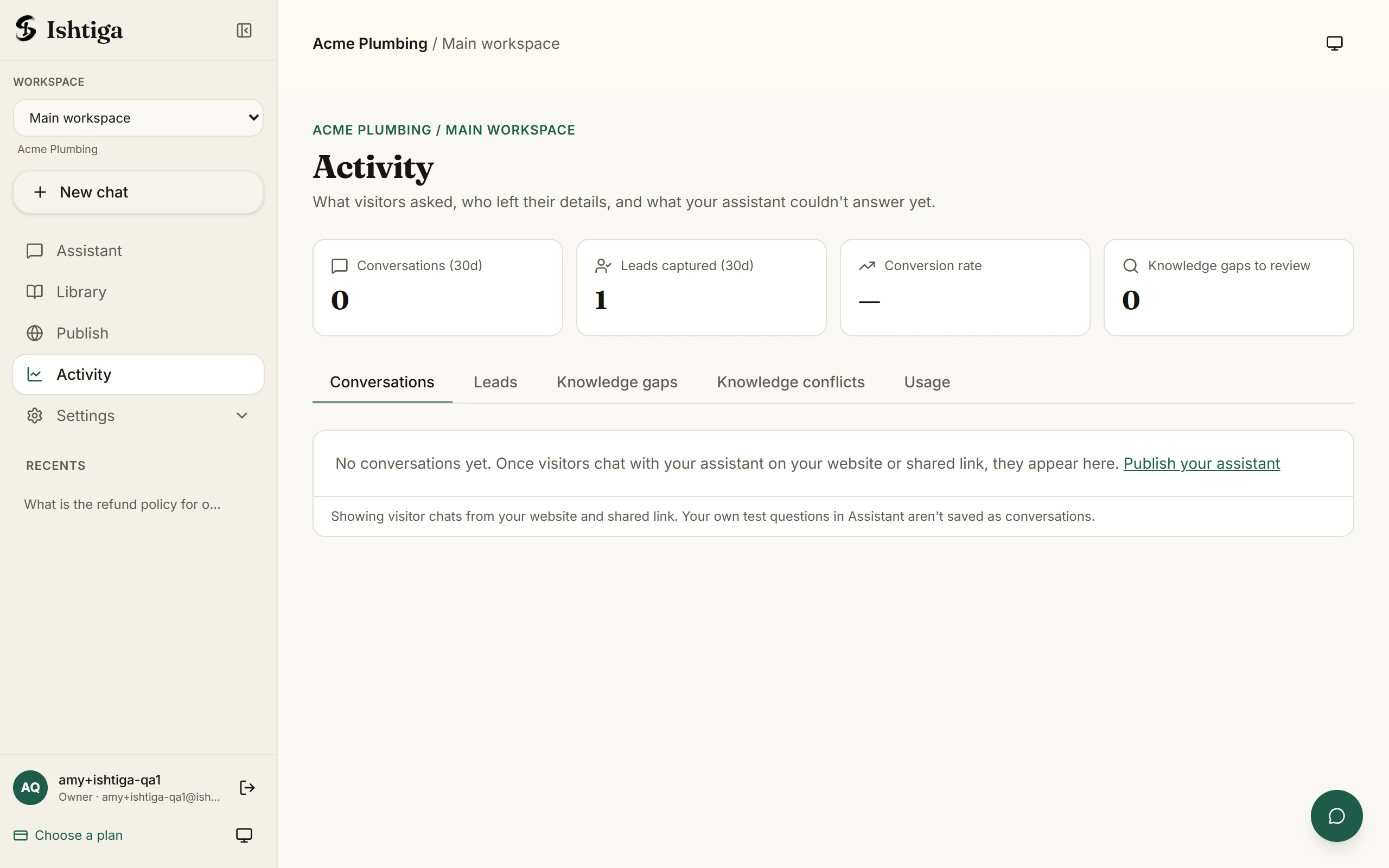
Only visitor conversations count here. Your own questions in the Assistant never appear.
Step 2: Read conversations
The Conversations tab lists each visitor chat from the website widget or the preview link, and each voice call. Select one to read the exchange and the sources the assistant cited. For a voice call you see a short summary and, when your voice provider still has it, the transcript. Look for:
- Answers that cite the wrong document, which usually means a title is misleading.
- Questions the assistant answered vaguely, which usually means the source is vague.
- Repeated questions, which are candidates for a suggested question on the widget.
Step 3: Answer handoffs
The Handoffs tab lists conversations waiting for a person, on every plan: visitors who asked for someone, questions the assistant could not answer, and actions that need your approval. Open one, choose Claim so colleagues know you have it, write a reply (it is emailed to the visitor) and choose Resolve when done. Members and above can act; Viewers can read. When a handoff is due depends on the response time and opening hours set in Settings → Integrations & automations (editing them needs Saku).
Step 4: Check Autopilot
If Autopilot is on, open the Autopilot tab. Waiting for you lists what Ishtiga wants to do but needs your decision: follow-up emails to leads, answers to repeated questions, new starter questions and knowledge conflicts to settle. Owners and Admins approve or decline each one there. Done by Ishtiga lists what it did, with Undo beside answers and starter questions it changed. The Weekly report tab's Done for you section counts the week's finished work.
Step 5: Work the leads (Saku)
The Leads tab shows everyone who left details, with their enquiry, score, status, owner and whether the lead reached your other tools (Sent). Above the list, Response times covers the last 90 days: the share of leads that arrived outside your opening hours, the median time until someone on your team first acted on a lead, and how many leads nobody has acted on yet.
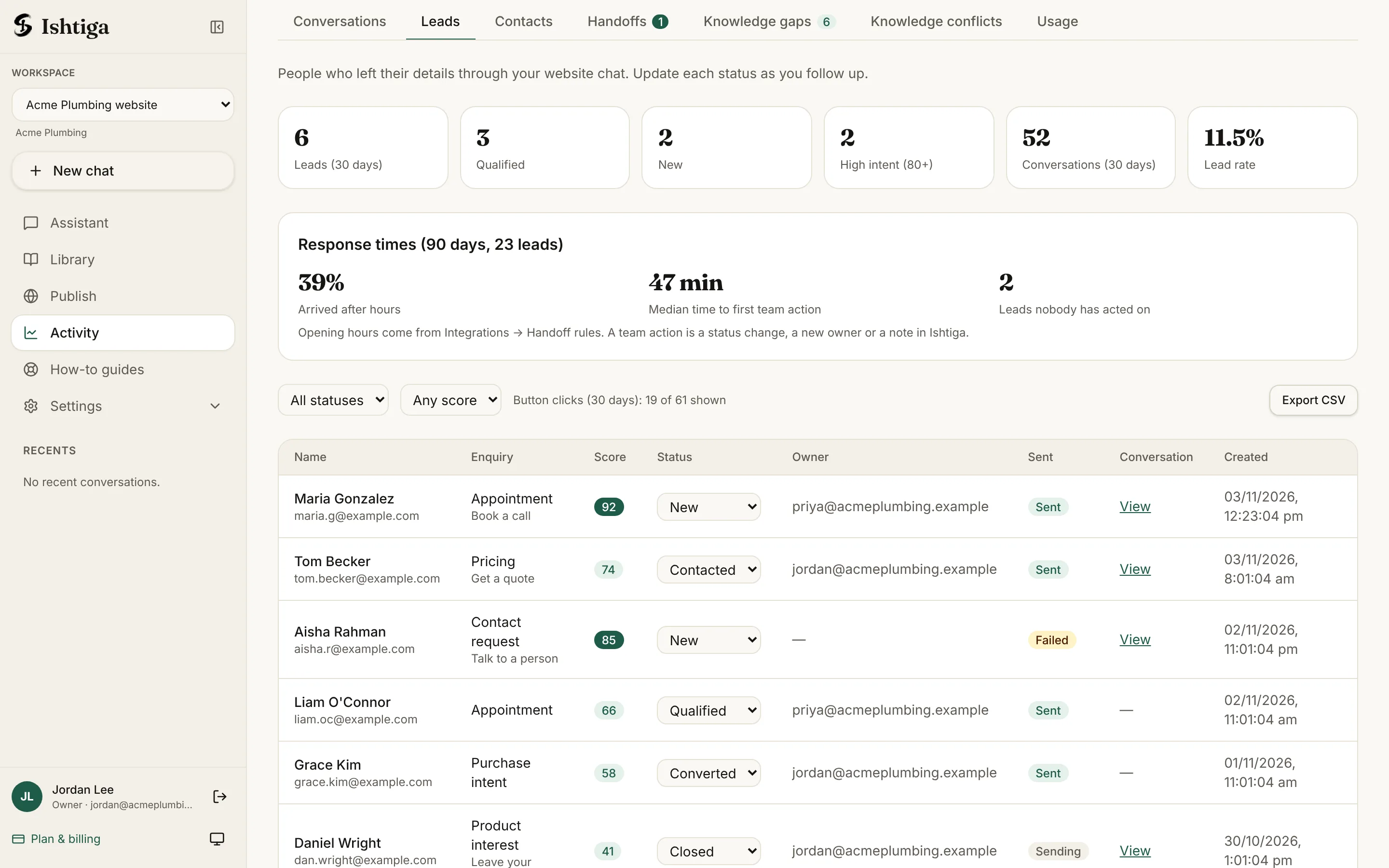
- Filter by status or minimum score to prioritise. The score is only a sorting aid; visitors never see it.
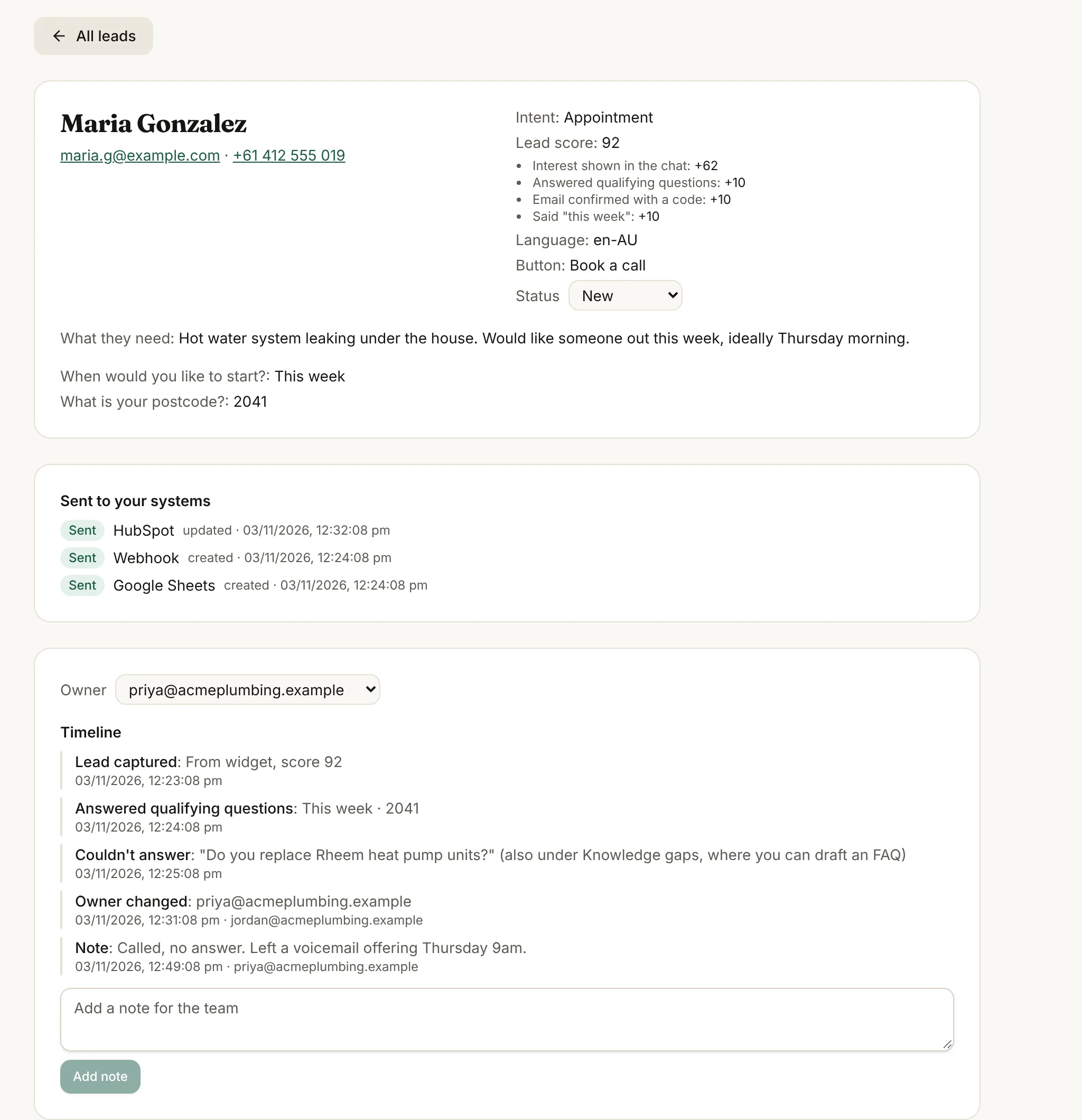
- Select a lead. The top card shows the contact details, why it scored that way, what they need and their answers to your qualifying questions. Sent to your systems lists each delivery to your webhook, HubSpot or Google Sheets.
- Owners and Admins choose an Owner and add notes for the team. Every status change, owner change, note, answered question and follow-up is listed on the Timeline with who did it and when. Couldn't answer marks a question the assistant had no answer for in that chat.
- Set the status as you go: New → Contacted → Qualified → Converted, or Closed for enquiries that are finished or not a fit. For a closed lead you can write why.
- Export CSV downloads every lead in the workspace with its owner, score reasons, answers, language and close reason (Members and above).
To send leads to your CRM or a spreadsheet automatically, see guide 14. To chase leads nobody has contacted, see guide 15.
On every plan, contact requests made through Talk to a person are emailed to every Owner and Admin, so nobody waits on the dashboard.
Step 6: Check contacts
The Contacts tab keeps one record per person across website chat, calls and the Agent API, so someone who chats twice and then calls appears once. Every plan can see it.
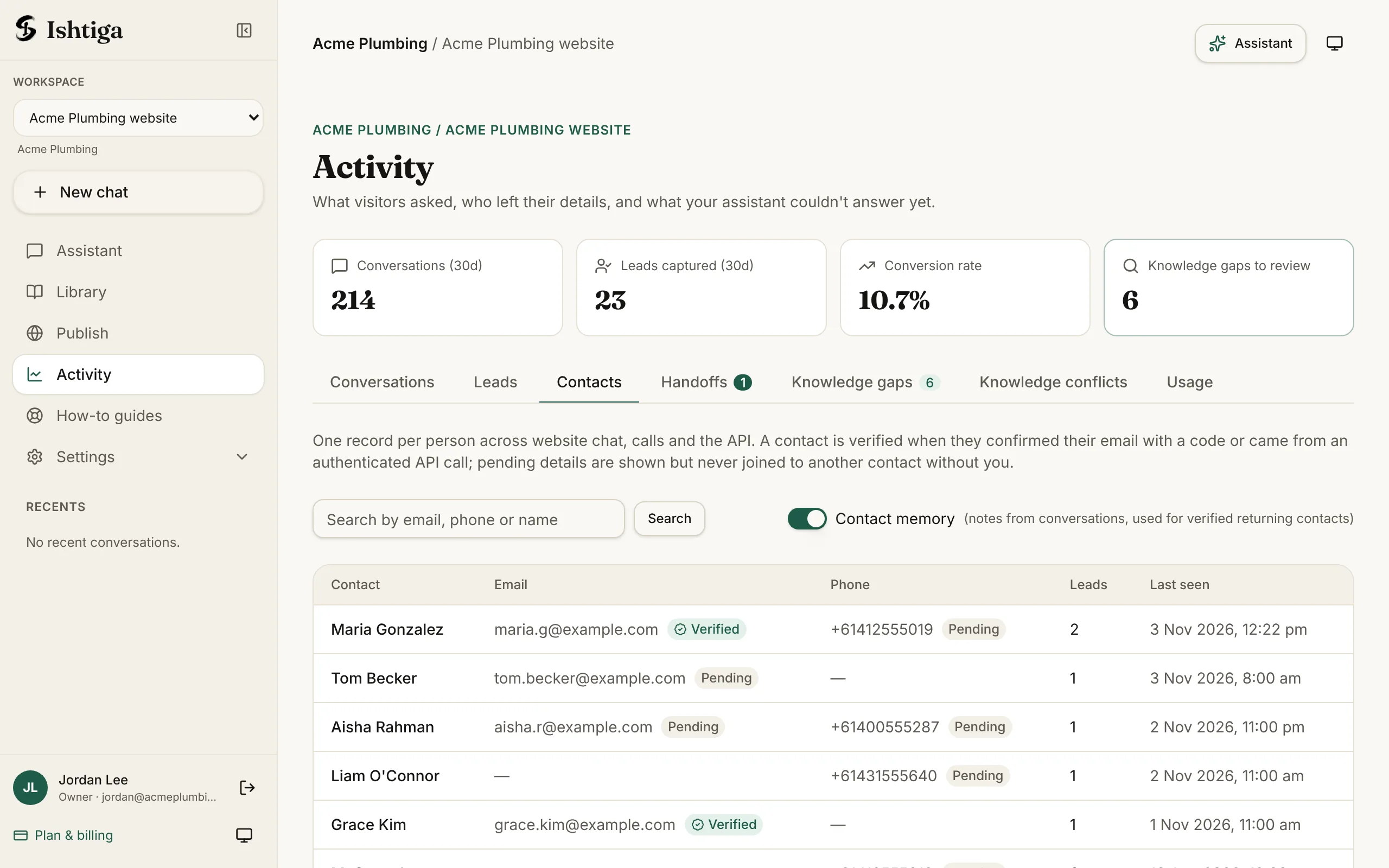
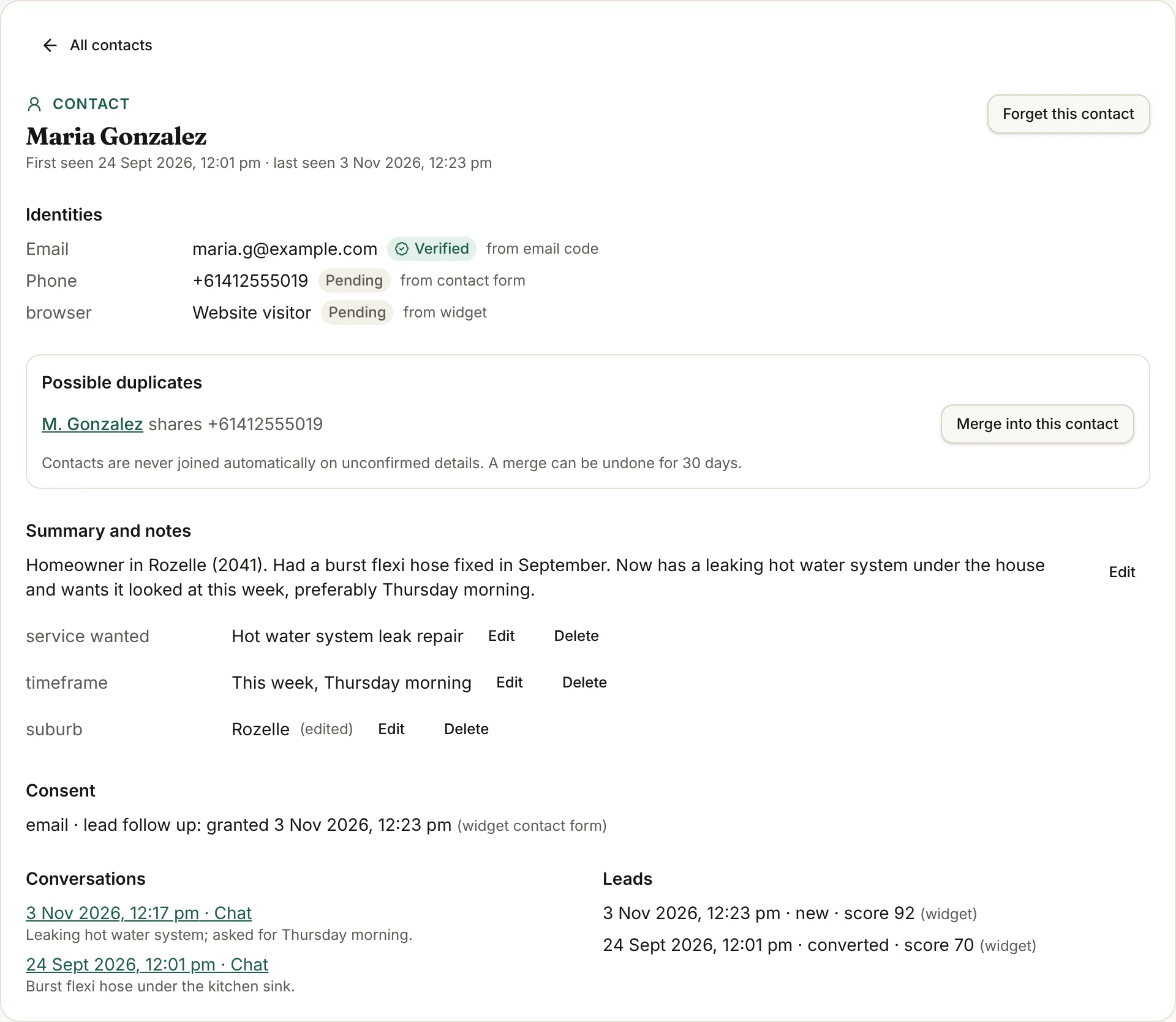
- An email is Verified when the visitor confirmed it with a code in the chat, or when it came through an authenticated Agent API call. Everything else is Pending. Contacts are never joined on pending details.
- Select a contact to see their details, their conversations and leads, and the consent they gave. Possible duplicates lists other contacts that share an email or phone number. Owners and Admins on Saku can Merge into this contact, and undo the merge from the same place for 30 days.
- Contact memory (Saku, off by default, switch at the top of the tab) writes a short summary and notes, such as the service wanted and timeframe, after each conversation. Owners and Admins can edit or delete them. The assistant uses the summary only for visitors who confirm their email with a code.
- Forget this contact (Owners and Admins) deletes the person's details, notes and consent, removes them from their leads, and cancels anything still waiting to be sent to your other tools.
Step 7: Fill knowledge gaps
The Knowledge gaps tab groups questions that got no cited answer in the last 30 days, most frequent first.
- Choose Add answer beside a question (Draft FAQ on Saku).
- Edit the question if needed, write a short accurate answer, and choose Publish to Library. On Saku, Draft answer writes a first draft for you to check.
- The answer is saved as an FAQ in this workspace. Saved by an Owner or Admin it is public straight away; saved by a Member it stays private until an Owner or Admin makes it public.
The gap and similar questions disappear from the list once the FAQ is saved.
Step 8: Clear knowledge conflicts (Saku)
The Knowledge conflicts tab lists places where two sources disagree, such as two refund windows. While a conflict is open, visitors get "let me get someone to confirm it" instead of either version. Fix or delete the wrong source, then choose Run check now. Dismiss a finding that is not a real conflict to unblock it immediately.
Step 9: Check usage
The Usage tab opens with a 30-day overview: conversations, leads, qualified leads, button clicks and conversion rate, a banner for new high-intent leads with a View leads shortcut, recent conversations, and the question-to-customer funnel. Further down are storage, document and passage counts, questions per day split between console and widget, and any documents flagged as possibly containing personal information.
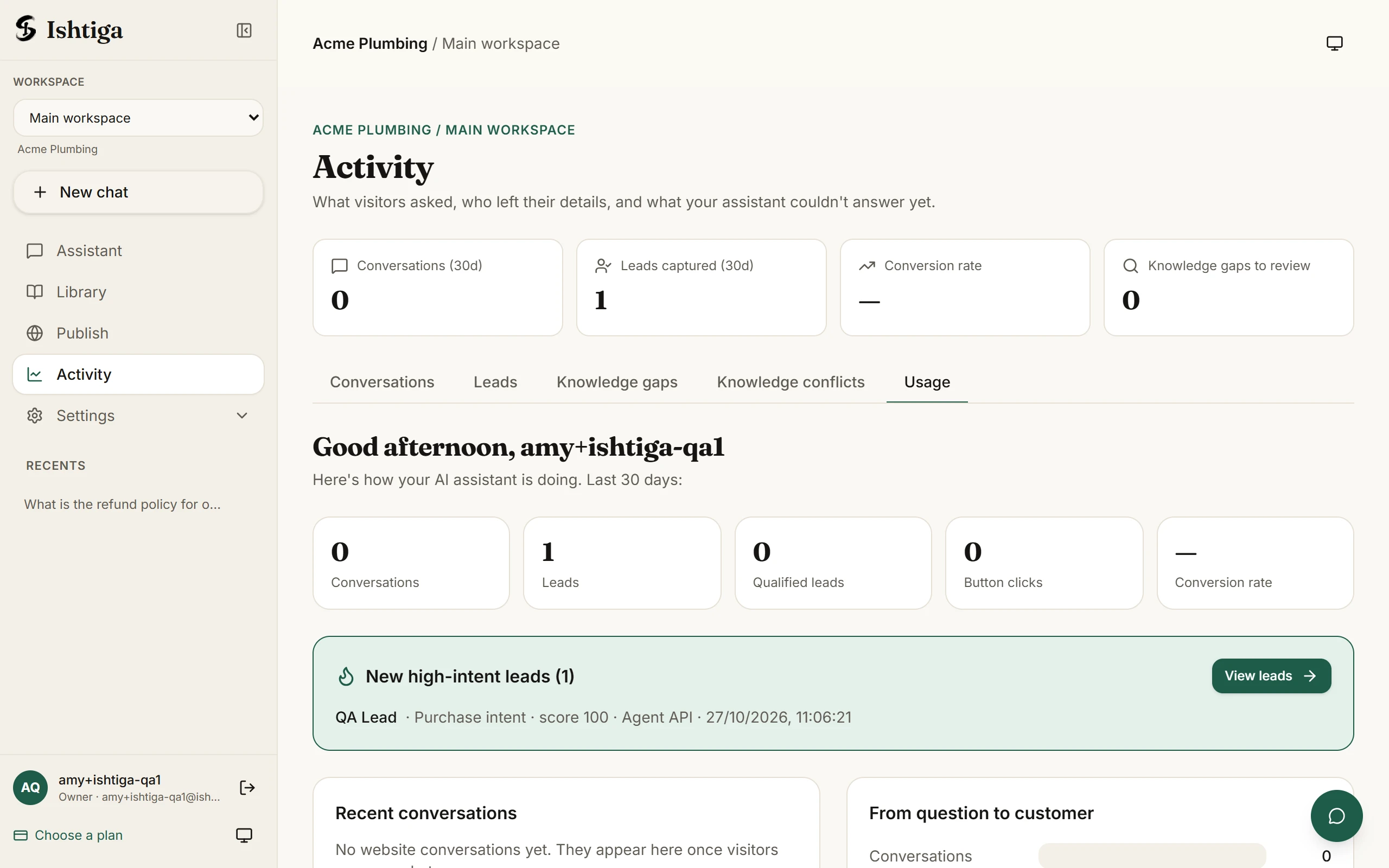
Warnings appear here from 75% of the AI answer or voice allowance, and Owners and Admins are emailed at 90% and 100%. For the plan-level view, open Settings → Plan & Billing (guide 10).
A weekly checklist
- Read any conversation with a thumbs-down or a dismissed next step.
- Claim and resolve open handoffs.
- Clear Waiting for you in Autopilot.
- Give every New lead an owner, and move it to Contacted or Unqualified.
- Check Leads nobody has acted on under Response times is zero.
- Add an answer for the top three knowledge gaps.
- Resolve open knowledge conflicts.
- Note usage against the allowance and the trial end date.