
 Ishtiga
Guide 6 of 15
Guide visitors to a next step
Goal: tell the chat what you want interested visitors to do, and give it buttons for booking, quotes or contact. Who: Owners and Admins. Plan: on every plan, visitors can use Talk to a person in the chat header, and a contact form opens straight after a reply that asks for their details. The conversation goal, next-step buttons, lead capture and scoring in Activity, and lead webhooks are part of Ishtiga Saku. On Toki, Settings → Conversion AI shows what Saku adds.
How it decides when to suggest something
Every visitor question gets an interest score from 0 to 100 using simple rules, with no extra AI call. General questions score low, product questions around 40, pricing around 60, booking around 80, and "contact me" or "I want to buy" 85 or more. A next-step button appears only when the score reaches the button's threshold and the question matches the button's intents. It never appears after an ordinary support question, and never again in a conversation once the visitor chooses No thanks.
Step 1: Choose the main goal
Open Settings → Conversion AI (or scroll to Conversation goal on the Publish page).
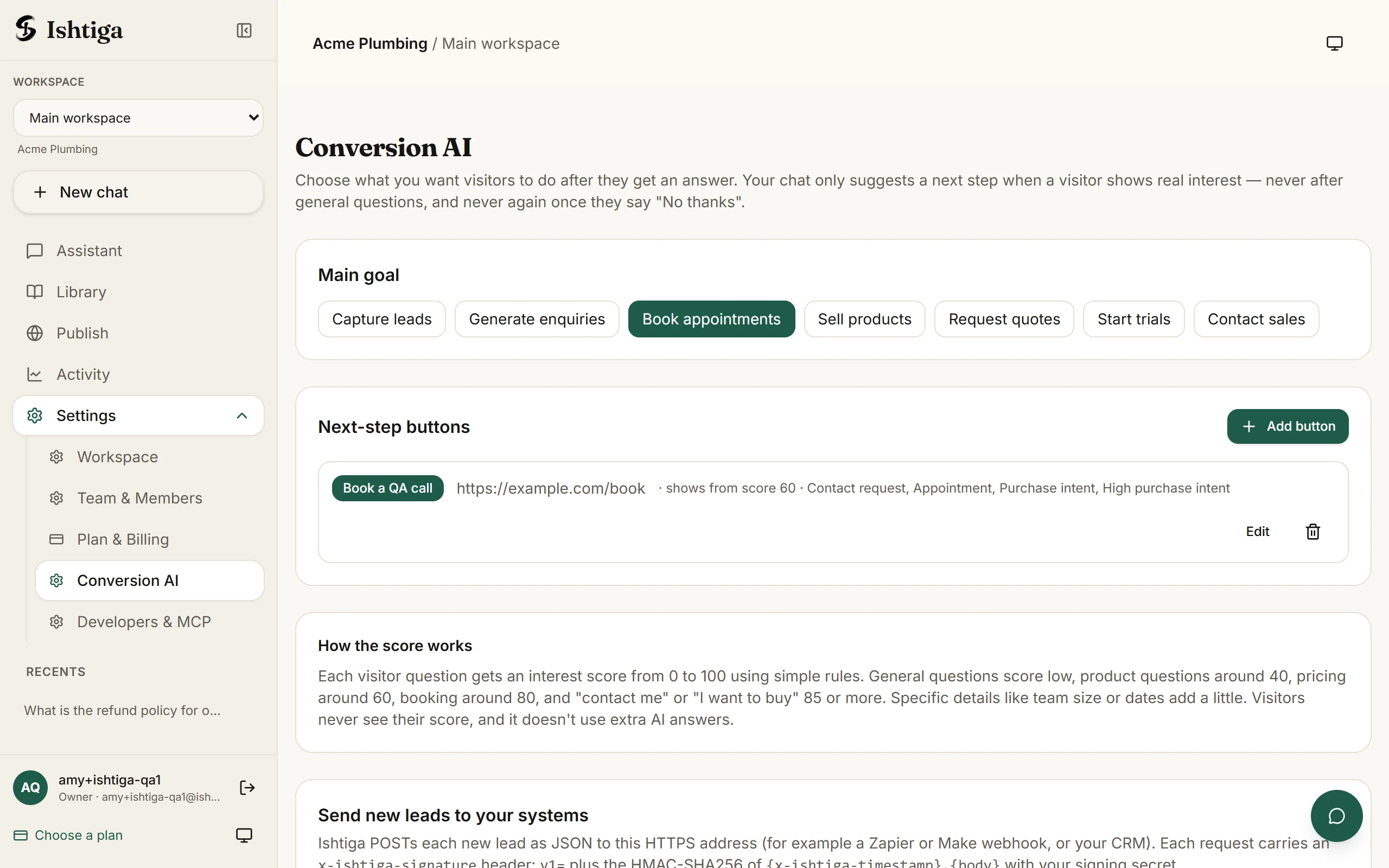
Pick the goal that matches your business: Capture leads, Generate enquiries, Book appointments, Sell products, Request quotes, Start trials or Contact sales. The choice is saved immediately ("Goal saved").
Until you add a button, the chat offers Talk to our team with a short contact form whenever a visitor asks to be contacted, wants to book, or is ready to buy.
If you want the chat to book appointments in your Google Calendar (Saku), see guide 12.
Step 2: Add a next-step button
- Choose Add button.
- Name (for you): an internal label, such as "Booking page".
- Button text: what visitors see, such as "Book a call".
- What it does: Opens a contact form (captures a lead) or Opens a link (booking page, product, checkout, phone, email). For a link, enter the destination.
tel:andmailto:links work. - Show when interest score is at least: drag the slider. 60 shows it from pricing questions upwards; 80 waits for booking or purchase intent.
- Priority: when two buttons qualify, the higher number wins.
- Tick the visitor intents it applies to, then choose Save button.
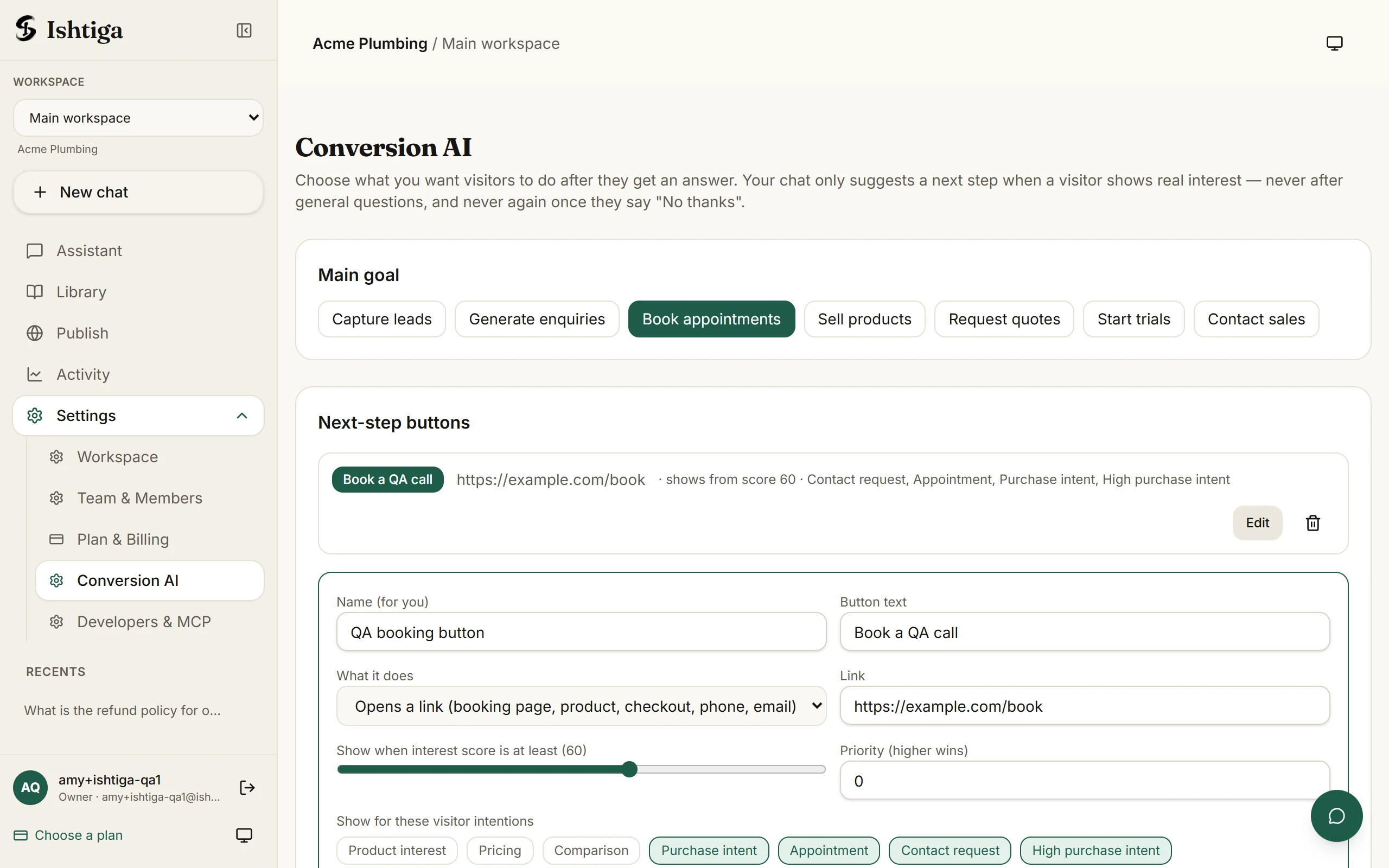
The saved button is listed with its destination, threshold and intents. Use Edit to change it or the trash icon to delete it.
Step 3: Test it in the preview
Open Publish and ask the live preview a high-intent question such as "How do I book someone for Tuesday?". The button should appear under the answer. Ask "What are your opening hours?" and confirm it does not. If a visitor types their own email address or phone number, the chat repeats it back so they can check it.
Step 4: Ask qualifying questions (Saku)
Still on Conversion AI, under Lead qualification, add up to three short questions, such as "When would you like to start?" or "What is your postcode?". The chat shows them as optional fields only after the visitor has sent their details, never before they get an answer. The answers appear on the lead, in the CSV export and in the data sent to your other tools.
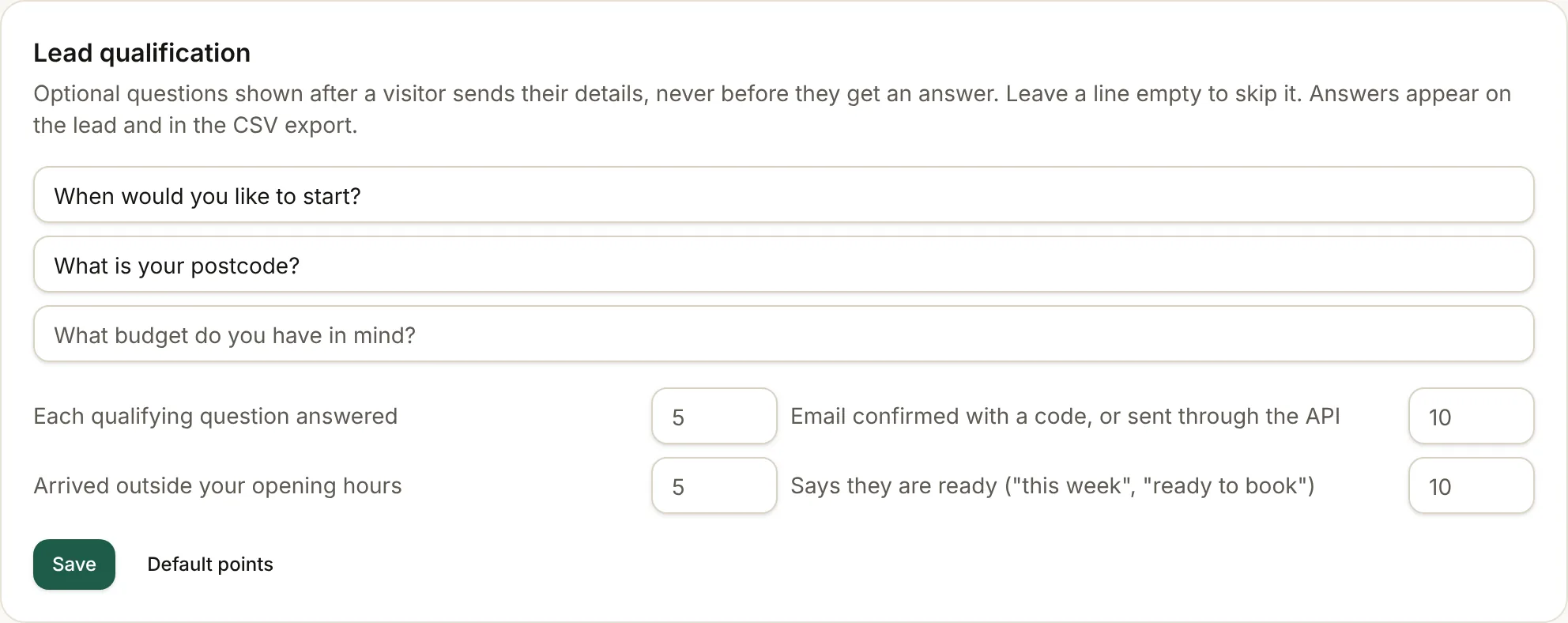
The four numbers below the questions are the points a lead's score gains for each answered question, an email confirmed with a code (or sent through the API), arriving outside your opening hours, and wording such as "this week" or "ready to book". Choose Save, or Default points to go back to the standard values. Each lead shows which of these added to its score.
Step 5: Send new leads to your own tools (Saku)
Webhooks (Zapier, Make, n8n or your own endpoint), HubSpot and Google Sheets are set up in Settings → Integrations. See guide 14.
Next
Follow up the leads that arrive in guide 7.