
 Ishtiga
Guide 9 of 15
Connect the API and AI assistants
Goal: create an API key, make your first Partner API call, and connect an MCP-capable assistant such as Claude Desktop or Cursor. Who: Owners and Admins. Plan: API keys, the Partner API and MCP connections are part of Ishtiga Saku.
Before you start
- The API answers from items marked Public, used in website chat only. If everything in the Library is private, every query returns "I couldn't confirm that from the published information". Make the relevant items public first (guide 2).
- Keep keys on a server or in a secret manager. Never put one in browser code, a public repository or a URL.
Step 1: Create an API key
- Open Settings → Developers & MCP.
- Under API keys, enter a descriptive name such as
Production serverand choose Create key. - Copy the key now. It starts with
ishtiga_sk_and is shown only once. - Choose Done.
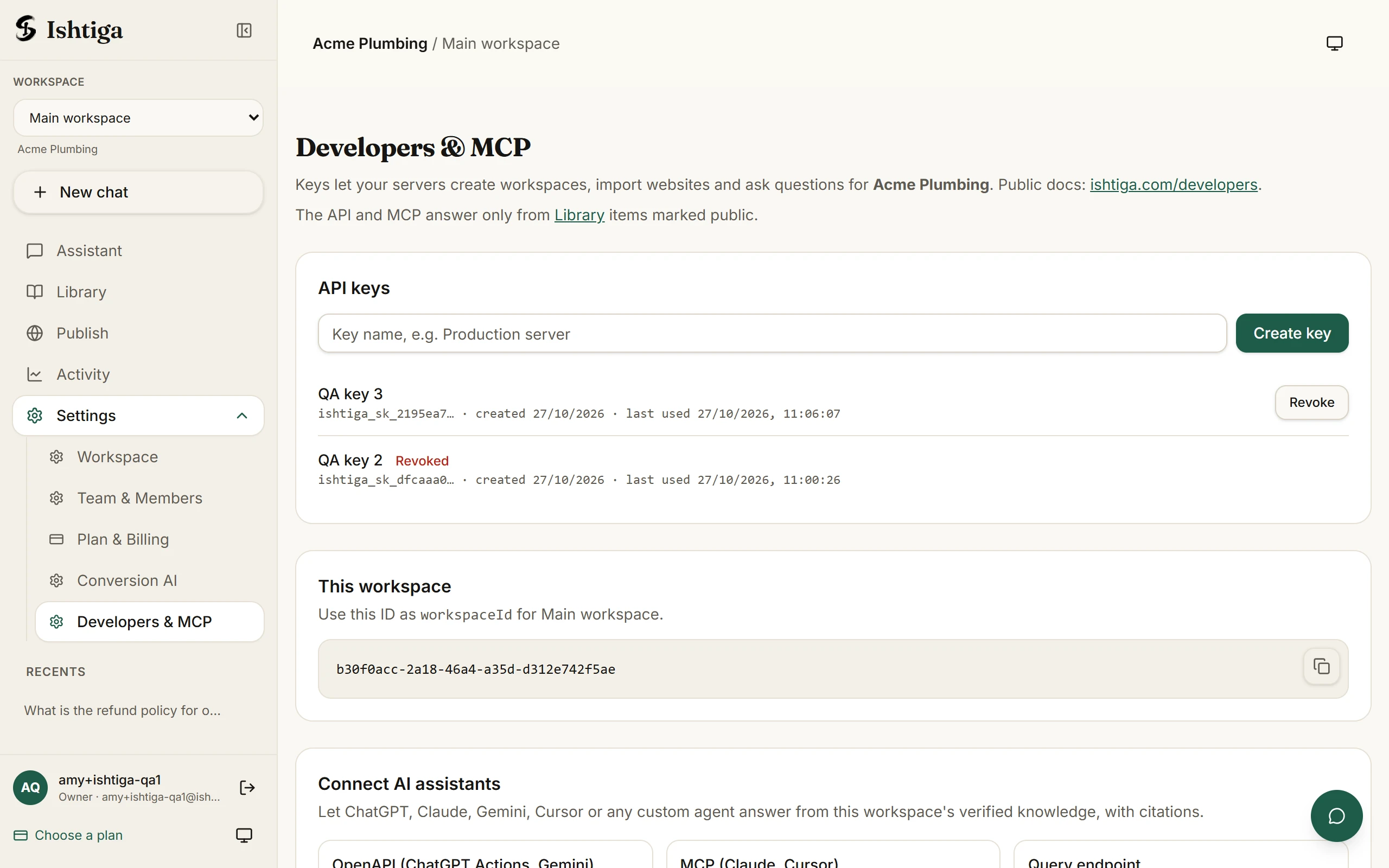
The key list shows when each key was created and last used. Revoke stops a key immediately; any integration using it will start receiving 401 errors.
Step 2: Note your workspace ID
Under This workspace, copy the workspace ID. Every API call names the workspace it should answer from, and a key can only reach workspaces in its own organisation.
Step 3: Make a first call
Send your key as a bearer token:
curl -X POST https://ishtiga.com/api/public/v1/query \
  -H "Authorization: Bearer ishtiga_sk_..." \
  -H "Content-Type: application/json" \
  -d '{"workspaceId":"YOUR_WORKSPACE_ID","query":"Do you charge a restocking fee?"}'
The response includes the answer with numbered markers, grounded (true when the answer rests on cited passages), citations, a deterministic intent, and counts of any personal information that was masked.
The page's Test a query box runs the same call against this workspace and shows the raw response, so you can check a key without writing code. Each fresh answer uses one AI answer credit.
Step 4: Pick the endpoints you need
| Endpoint | Use it to |
|---|---|
GET /api/public/v1/workspaces | List the organisation's workspaces with their IDs and embed snippets |
POST /api/public/v1/workspaces | Create a workspace for a customer, with name. It counts toward your plan's workspace limit |
POST /api/public/v1/query | Get a grounded, cited answer for an AI agent |
POST /api/public/v1/ask | Get an answer with sources and intent for a visitor-facing integration |
GET /api/public/v1/agent/sources?workspaceId=… | List the public sources the assistant can use |
POST /api/public/v1/agent/ask | Ask through the dedicated agent endpoint (answer, citations, intent, redaction counts) |
POST /api/public/v1/agent/leads | Create a lead with name and email; optional phone, company, requirement |
POST /api/public/v1/websites, /websites/verify, /crawl | Provision and import websites for customers you manage |
Error responses are JSON with an error message: 400 for a bad body (for example "email: Invalid email address"), 401 for a missing, malformed or revoked key, 402 for a plan limit, 403 for a website that is not verified yet, 404 for a workspace the key cannot reach, and 429 for the rate limit of 10 requests per minute per key. The full reference, with request and response examples for every endpoint, is on the same page and at ishtiga.com/developers.

Step 5: Connect an AI assistant
The Connect AI assistants section gives you three ready-made options for the selected workspace:
- OpenAPI (ChatGPT Actions, Gemini): the OpenAPI 3.0 document at
/api/public/v1/openapi.json, to import as a tool with API-key authentication. - MCP (Claude, Cursor): the hosted MCP server at
https://ishtiga.com/mcp. Add it in the client's MCP settings and complete the sign-in it prompts for. Access follows the signed-in person's Ishtiga role, so no API key is needed. The tools it offers arelist_workspaces,list_documents,ask_library(a cited answer) andget_morning_summary(recent chats and calls, leads and anything needing a person). - Query endpoint: for any custom agent.
The Tool builder underneath writes the tool name, the "when to use it" instructions and the schema for you. Copy the tab that matches your client. Tell the agent to quote citations and to say when the answer is not grounded; Ishtiga returns evidence, and the client decides how to present it.
Next
Watch API leads arrive in Activity (guide 7) and keep an eye on the AI answer allowance in guide 10.