
 Ishtiga
Guide 2 of 15
Add knowledge to the Library
Goal: give the assistant something to answer from: a few documents or quick notes, with the right ones marked public. Who: Owners, Admins and Members can add and remove. Only Owners and Admins can make an item public. Time: a minute per document.
Before you start
- Select the workspace you want to fill. The selector is at the top of the sidebar, and the breadcrumb at the top of the page confirms the current organisation and workspace.
- Gather current, readable material. A clear price list or policy page beats a scanned brochure.
- Supported files: PDF, Word, Excel, CSV/TSV, Markdown, plain text, JSON, HTML and images (PNG, JPG, WEBP, GIF). Files must be under 20 MB; images under 5 MB.
Step 1: Open the Library
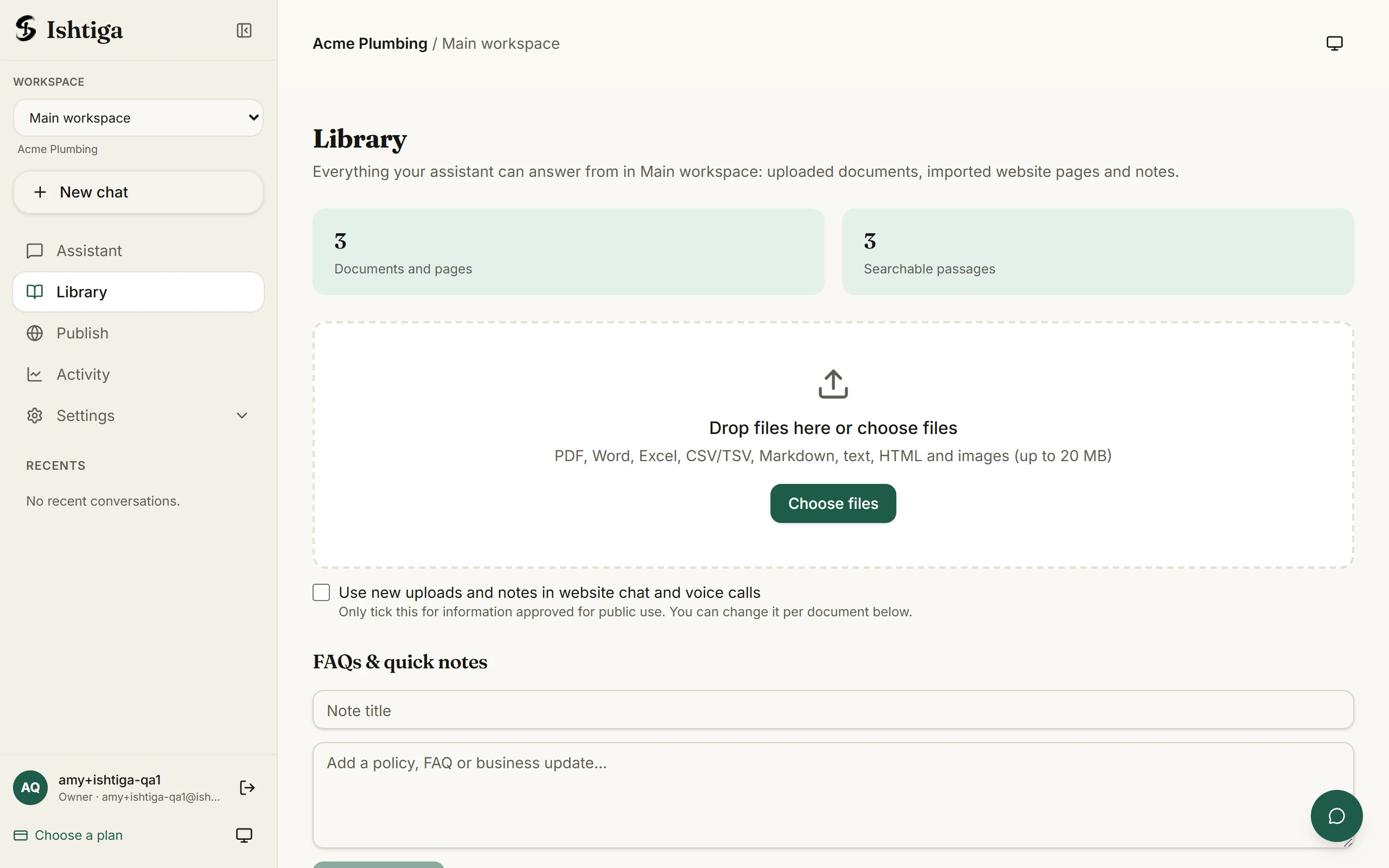
Choose Library in the sidebar. The two tiles at the top count documents and searchable passages in this workspace.
Step 2: Decide whether new items may be used in website chat
Under the upload area is a tick box: Use new uploads and notes in website chat and voice calls.
- Ticked: every file and note you add from now on is public, so the website chat, voice receptionist and API can answer from it.
- Unticked: new items are private. The team Assistant still uses them, but visitors never see them.
Toki starts with it ticked, Saku unticked. The box is for Owners and Admins; items added by Members are always private until an Owner or Admin makes them public. Tick it only for information you are happy to show customers. You can change any single item later.
Step 3: Upload a document
- Choose Choose files, or drag files onto the dashed area.
- Wait. Text is read in your browser, then indexed into passages on the server. A message tells you how many passages were added and whether the item is public or private.
- The document appears under Your documents with its type, passage count and date.
Images are sent to the AI service for text recognition and use one AI answer credit each. A scan-only PDF has no selectable text; upload its pages as images instead.
Step 4: Add a quick note
Use FAQs & quick notes for anything short: a policy, opening hours, a seasonal update.
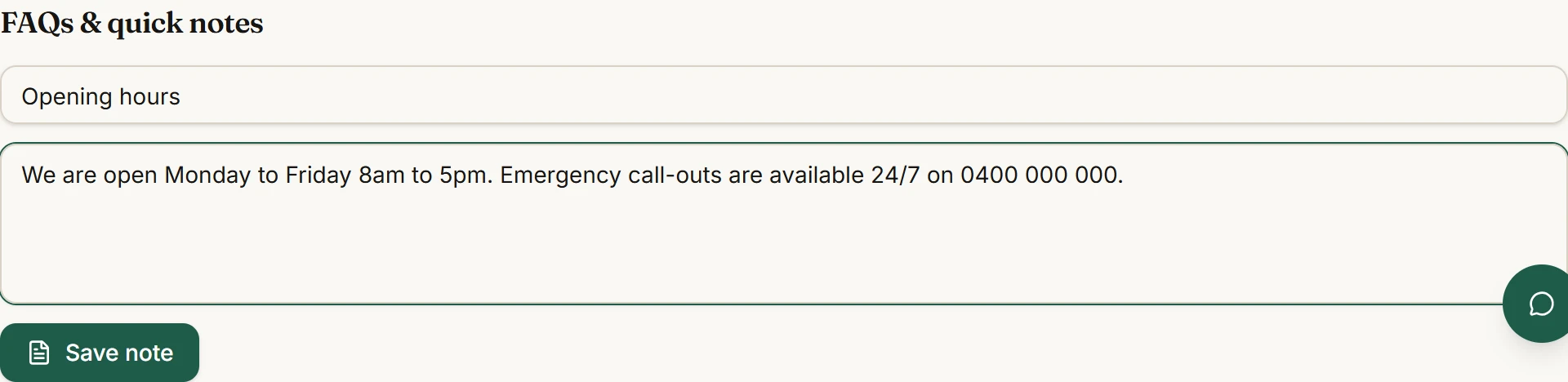
- Enter a Note title that says what the note is, such as "Opening hours" or "Refund policy".
- Write the content in plain sentences. State dates, prices and exceptions explicitly, because that is the wording customers ask about.
- Choose Save note.
The note is indexed like a document and appears in the list within a few seconds.
Step 5: Check the public or private label on each item
Each row ends with either Public, used in website chat or Private, team only.
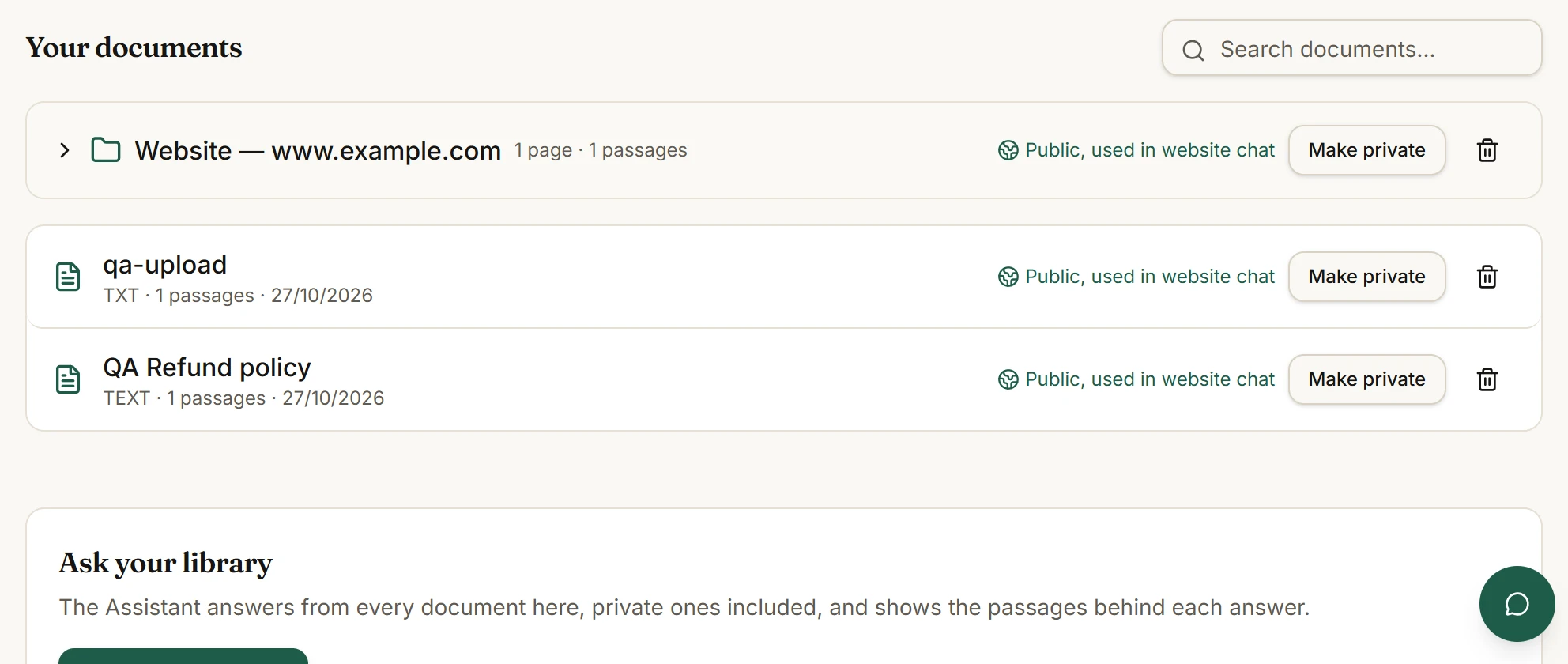
- Owners and Admins change a single item with Make public or Make private.
- An imported website appears as a folder; Make all public or Make private on the folder changes every page in it.
Private items are used by the Assistant page only. If the website chat or the API answers "I couldn't confirm that from the published information", the item it needs is almost always still private.
Step 6: Find or remove an item
- Search documents filters the list by title or filename as you type.
- The trash icon at the end of a row removes that item after a confirmation. Removed content stops being used for new answers immediately.
- Deleting a website folder removes every imported page in it.
Tips for better answers
- Give every document a descriptive title. Titles appear as citations in answers.
- Keep one current version of each policy. Two versions that disagree are flagged under Activity → Knowledge conflicts (Saku), and the assistant holds back both versions from visitors until you fix it.
- After adding something, ask a question it should answer and open the citation (see guide 3).
Next
Test what you added in guide 3, or import your website pages in guide 4.