
 Ishtiga
Guide 15 of 15
Follow up with leads automatically
Goal: make sure no lead sits untouched: remind the right person on your team, or send the lead a short email, when nobody has contacted them yet. Who: Owners and Admins set up the rules. Plan: Ishtiga Saku.
How it works
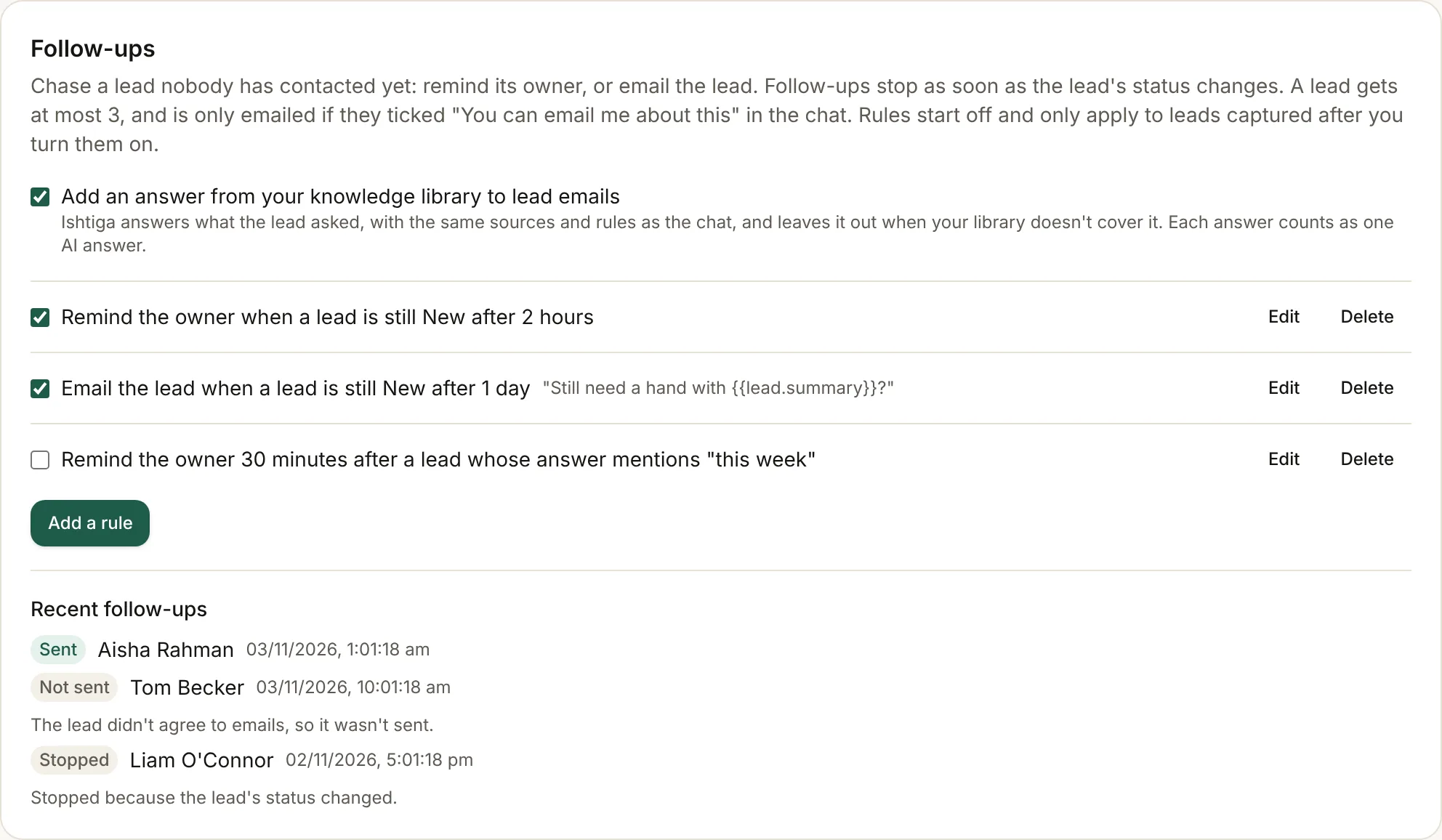
A rule has a trigger, a wait and an action. It fires once per lead, only while the lead's status is still New, and stops as soon as anyone changes the status. A lead gets at most 3 follow-ups in all. New rules start off, and only apply to leads captured after you turn them on, so old leads are never emailed. Every workspace already has two rules on: a reminder to the team when a lead is still New after 2 hours, and a Thank-you email that thanks a lead five minutes after they get in touch, with an answer to their question from your sources when there is one. Ishtiga pays for that answer.
Emails to leads are sent only while Autopilot is on. With Follow-up emails to leads on Ask me (the default) in Activity → Autopilot, each one waits there until an Owner or Admin approves it. Once you've approved 5 in a row, Autopilot offers to make them Automatic.
Step 1: Let visitors agree to emails
Nothing to set up here, but it's worth knowing: the chat's contact form has a box, unticked by default, You can email me about this enquiry. A lead is only emailed by a rule if they ticked it. Reminders to your own team don't need it.
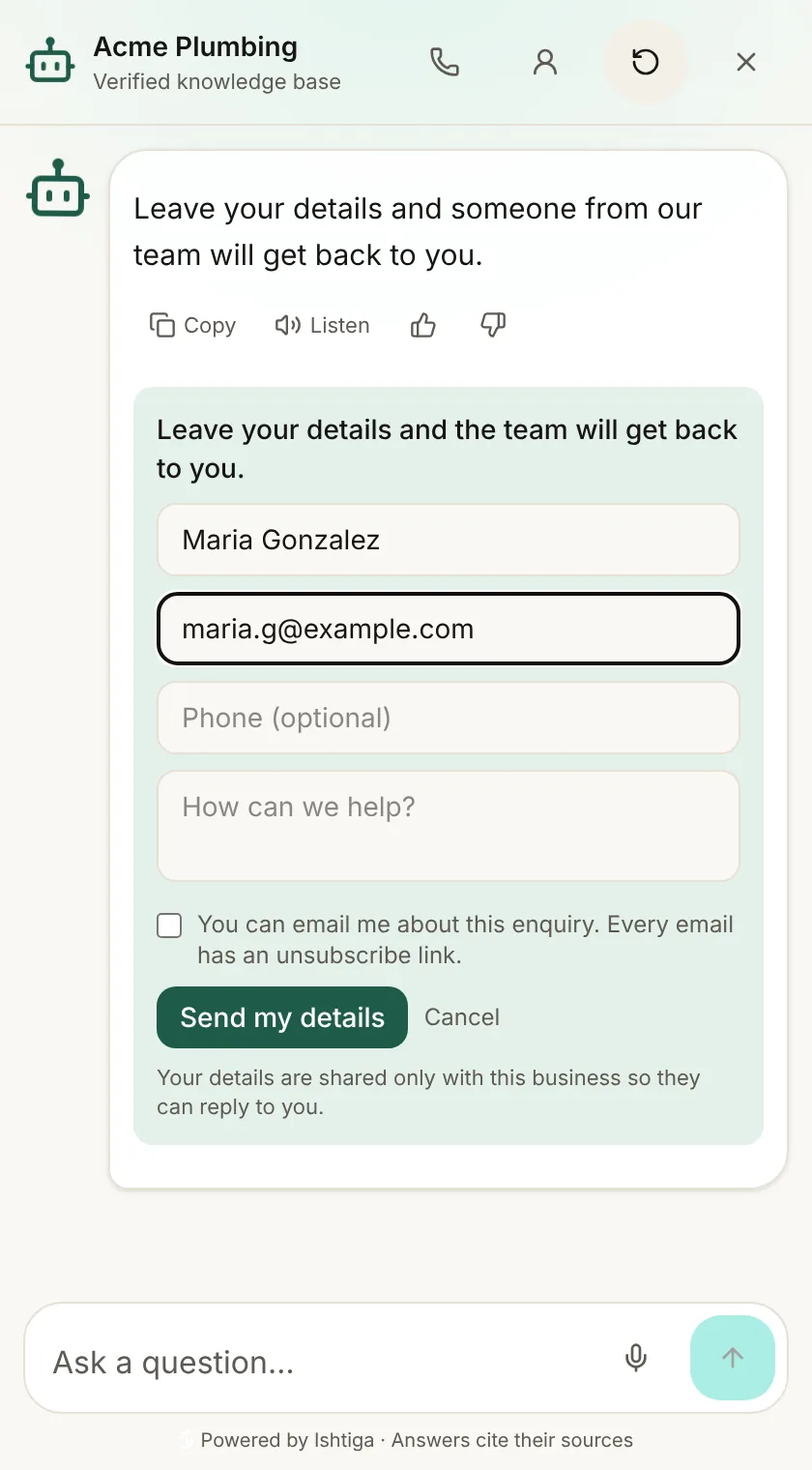
When someone ticks the box, it is recorded on their contact in Activity → Contacts, with where and when they agreed.
Step 2: Open Follow-ups
Choose Settings → Integrations and scroll to Follow-ups.
Step 3: Add a rule
- Choose Add a rule.
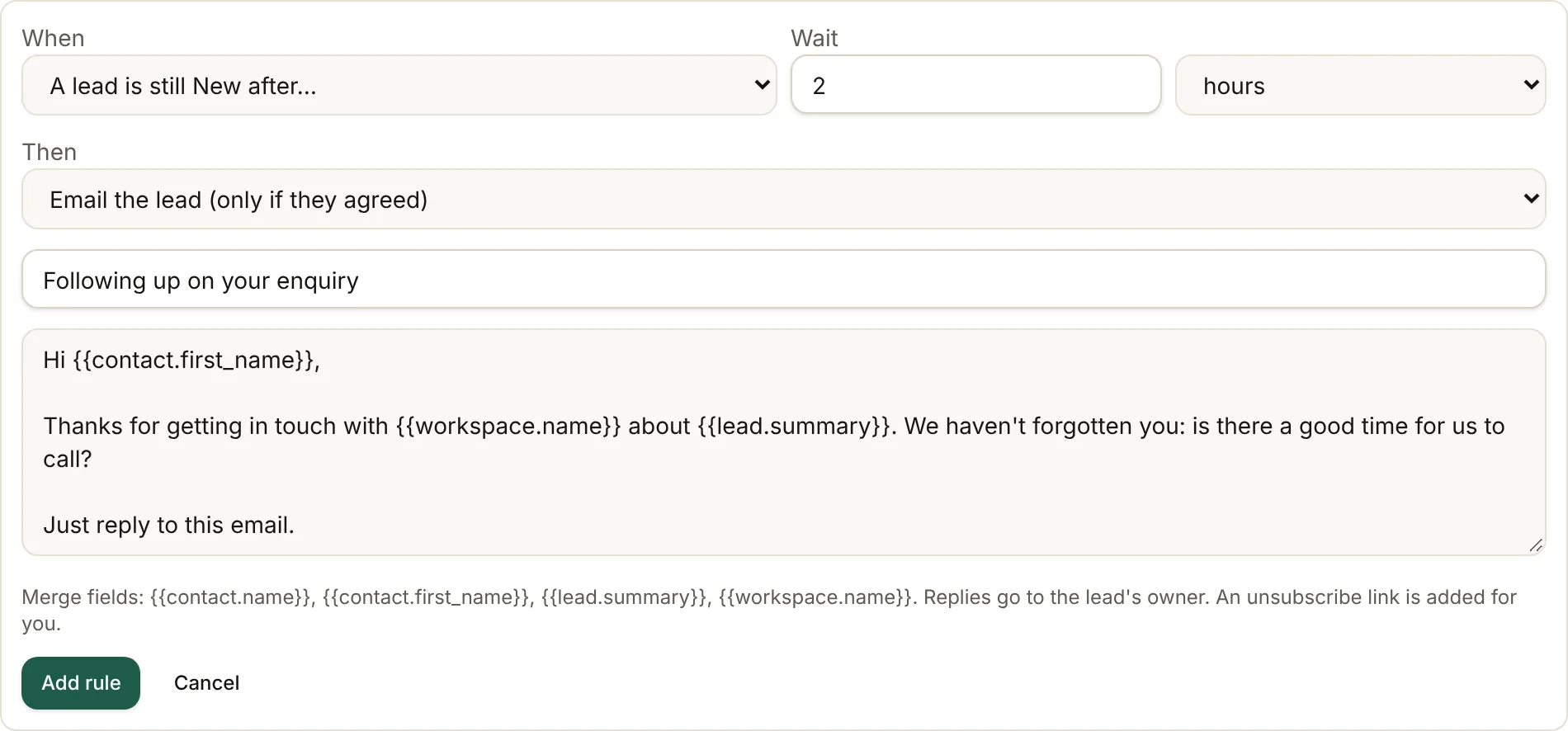
- Under When, pick A lead is still New after… or A lead's answer mentions… (this one looks at the answers to your qualifying questions, so add those first in Settings → Conversion AI).
- Set the Wait, for example 2 hours.
- Under Then, pick Remind the lead's owner by email (or the organisation owner if the lead has no owner), or Email the lead (only if they agreed).
- For an email to the lead, write a subject and message. The merge fields
{{contact.first_name}},{{contact.name}},{{lead.summary}}and{{workspace.name}}are filled in for each lead. Replies go to the lead's owner, and an unsubscribe link is added for you. - Choose Add rule, then tick the box beside the rule to turn it on.
A good starting point is a reminder to the owner after 2 hours, then an email to the lead after 1 day.
Add an answer from your knowledge library to lead emails (off by default) adds an answer to what the lead asked, from your Library, below your message. If your Library doesn't cover it, the answer is left out. Each answer uses one AI answer from your allowance.
Step 4: Check what was sent
Recent follow-ups lists the last 20, including ones that were not sent and why (for example, the lead didn't agree to emails, or the status changed first). Each follow-up also appears on the lead's timeline in Activity → Leads as Follow-up sent, and is sent to your webhook and HubSpot like a note.
Mark a lead Contacted once someone has been in touch, so no more follow-ups go out.
Unsubscribing
Every email to a lead has an unsubscribe link. Choosing Unsubscribe withdraws everything the person agreed to and stops any follow-up still waiting. Forget this contact does the same. If someone asks you not to contact them another way, open them in Activity → Contacts and choose Record an opt-out.
Next
Review how quickly your team responds under Response times in Activity → Leads (guide 7).