
 Ishtiga
Guide 3 of 15
Ask the Assistant and check its sources
Goal: confirm that the assistant answers real customer questions correctly from your Library, and learn how to read a citation. Who: everyone in the organisation. The Assistant page is part of Ishtiga Saku; on Toki, test answers in the preview on the Publish page instead. Cost: each fresh answer uses one AI answer credit from the organisation's allowance. Repeated questions served from the cache are free.
Step 1: Open the Assistant
Choose Assistant in the sidebar, or New chat to start clean. A notice appears above the message box once you pass 75% of your AI answers or voice minutes, and again when answers are paused. Plan & Billing always shows the full allowance.
On Saku, the same Assistant is also docked on the right of other signed-in pages as the Workspace Assistant panel, so you can test a question without leaving the page you are on.
The toggle at the top switches between two modes:
- Work: answers only from documents in this workspace. Use this to test what visitors will get.
- Chat: a general conversation that can also draw on selected documents.
Step 2: Ask a question a customer would ask
Type into Ask a question about your documents… and press Enter. Use Shift+Enter for a new line.
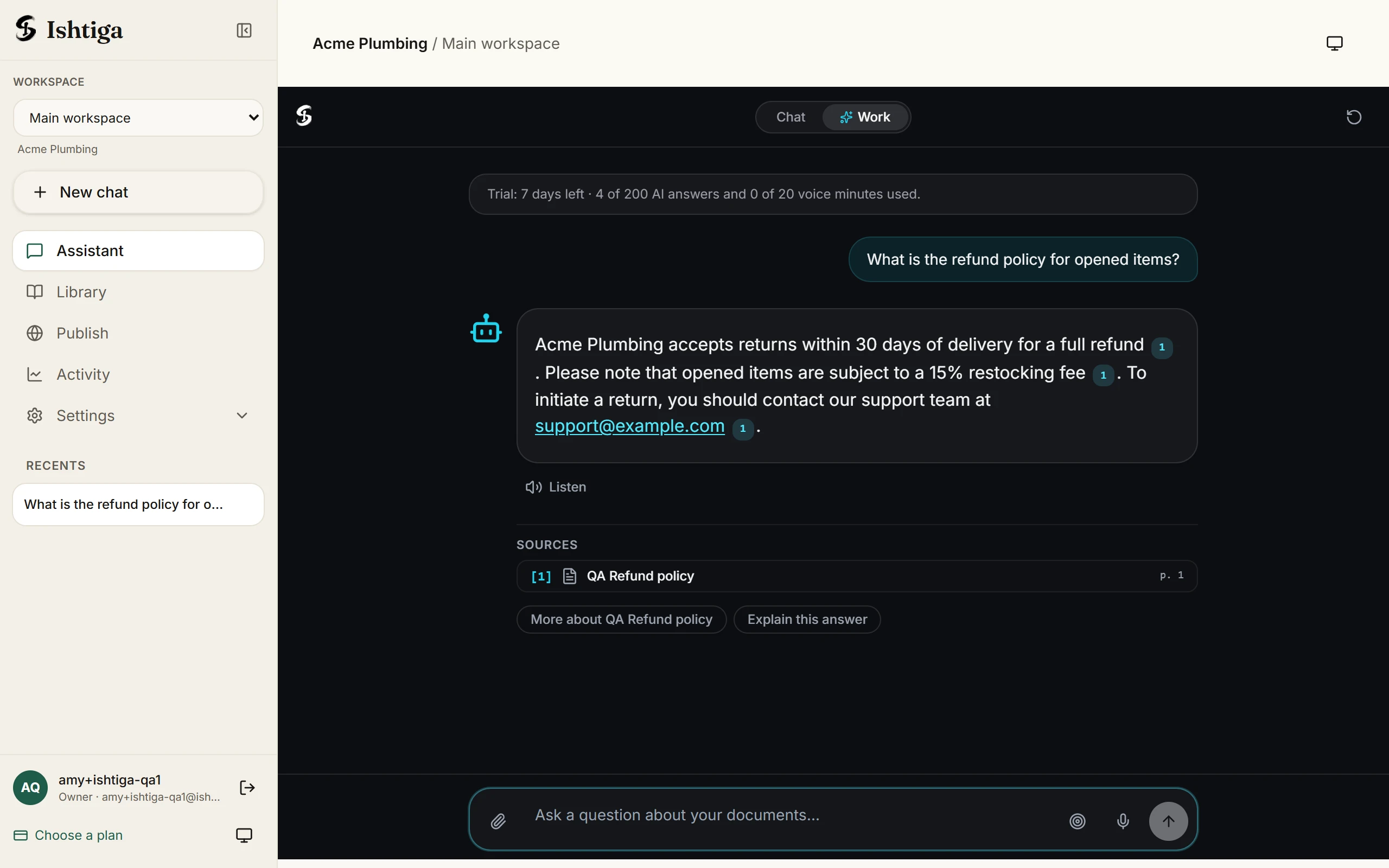
Ask the way a customer would, not the way the document is titled. "Can I return something I've opened?" tests retrieval better than "Refund policy".
Step 3: Read the answer and its citations
Each statement in the answer carries a small numbered marker. The Sources list under the answer maps each number to a document and page.
- Choose a numbered marker, or the source row, to open the passage behind it.
- Check that the passage actually says what the answer claims. A citation is evidence to review, not a guarantee.
- Use More about … to ask a follow-up on that source, or Explain this answer to see how it was built.
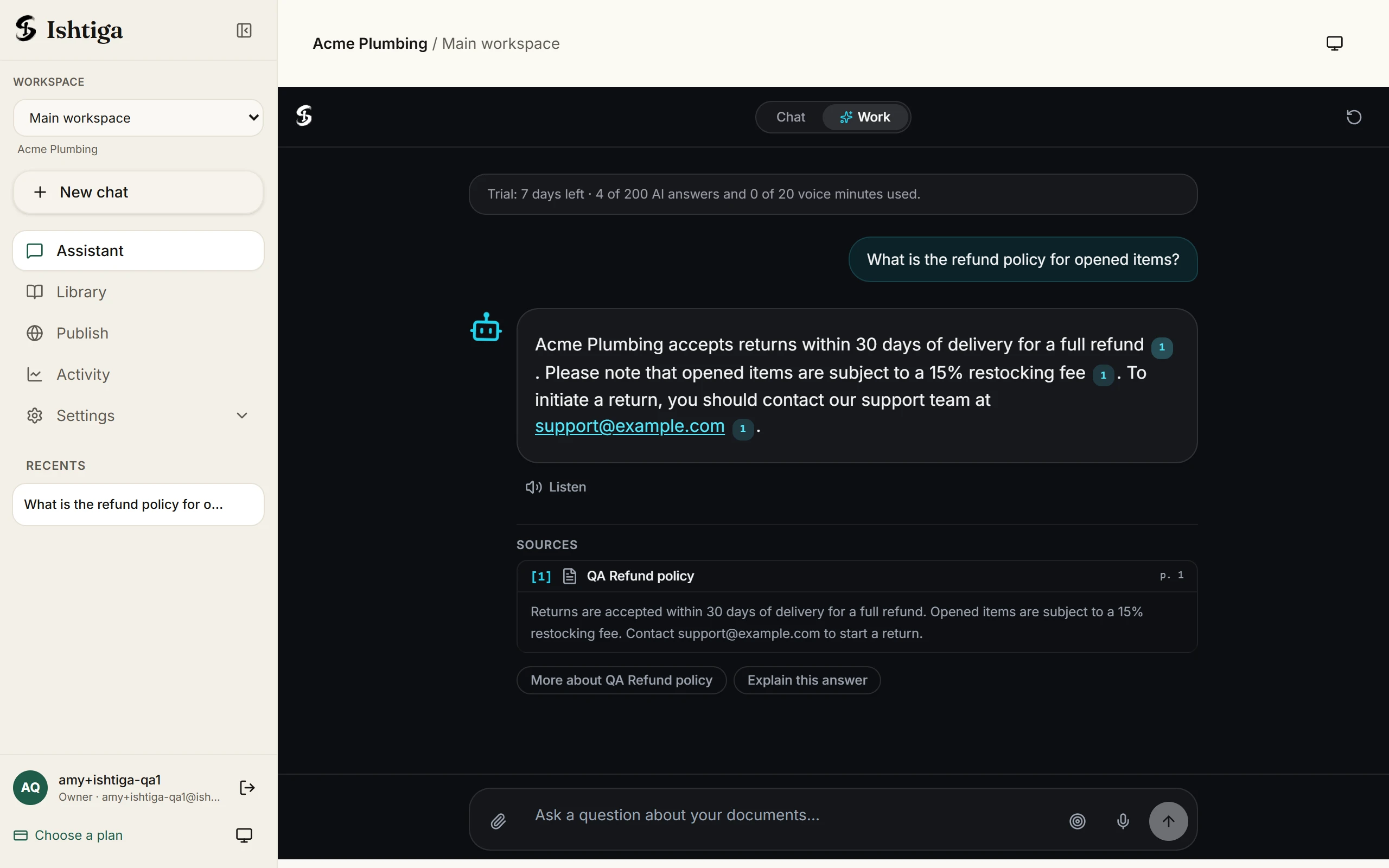
Listen reads the answer aloud. In the docked panel and the Publish preview, the thumbs beside an answer record whether it was helpful.
Step 4: Fix a weak answer
| What you see | What to do |
|---|---|
| "I couldn't find that in your documents" | The information is missing. Add a note or document with the exact wording customers use, then ask again. |
| Right document, wrong detail | Open the cited passage. If the source is ambiguous, rewrite it with explicit dates, prices and exceptions. |
| "Sources disagree" warning | Two documents conflict. Fix or delete the outdated one, then choose Run check now under Activity → Knowledge conflicts. |
| Answer is fine here but the website chat can't answer | The document is private. Make it public in the Library (see guide 2). |
Step 5: Come back to a conversation
Recent conversations are listed under Recents in the sidebar. Your own test questions are not recorded as visitor conversations in Activity, so they never skew your visitor statistics.
Next
Once the answers look right, put the chat on your website with guide 5, or import more pages with guide 4.